



Microsoft Power Automate formerly Microsoft Flow, is a tool for automating processes and tasks by connecting different applications and platforms. It is a low code or no-code application where flows can be built quickly and easily from scratch or pre-built templates. Power Automate integration with Power BI will allow exporting the dashboards or reports in various formats (PDF, PowerPoint, Excel) with ease.
In the organization Power BI reports are shared by the Power BI service (Cloud environment) to various users in the organization and it is mandatory that everyone should hold the license of service to view the content published and shared with them. Using Power Automate the exported reports can be shared with both internal and external users on a set schedule time in a certain format.
What is Power BI
Power BI helps to create real-time high-level analytical dashboards when compared with excel in terms of easy data modeling, handling huge data sets, ETL, logical functions, and a wide range of visuals with better UI/UX. Power BI uses powerful compression algorithms to import and store the data, which permits you to analyze, and visualize large datasets that can’t be viewed in Microsoft Excel. Excel is not designed to work with big data and has a more adjusted amount of data. We don’t have to reduce or downsize the size of the dataset to perform the analysis, the entire detailed report and summarisation can exist in a single file.
Integration with multiple data sources is one of the key features of Power BI. Data can be imported from multiple sources to power BI and all the ETL operations, data modeling can be performed in Power BI itself using Power Query. This will reduce the pain to create any kind of model in the native systems before the integration is made.
What is Power Automate
You might be wondering what is Power Automate and who can use it. Let me put it in simple terms with certain examples to make it better.
Power Automate is an automation tool developed by Microsoft with the intention to allow citizen developers to access the capability of automation in day-to-day tasks. Whether you are an IT, Marketing, Finance, or HR professional, you will be able to use Power Automate. It Empowers everyone to build automated processes with flows in Power Automate. Use low-code, drag-and-drop tools and hundreds of pre-built connectors that automate repetitive, mundane tasks with ease. It boosts efficiency by recording and visualizing your end-to-end processes with a process advisor, providing guided recommendations for creating flows and deep insights that take the guesswork out of what to automate.
Ex: With the help of Power Automate one can create a flow to send an alert email whenever a new row is created in a SharePoint list (a SharePoint list is connected to any ticketing tool and it creates a new row whenever a new ticket is raised).
Save all your mail attachments into a drive-by using Power Automate and the list of capabilities are endless.
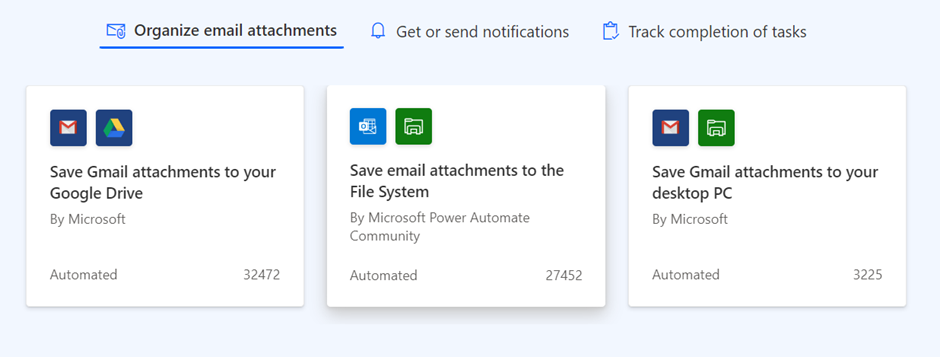
Power Automate Connectors
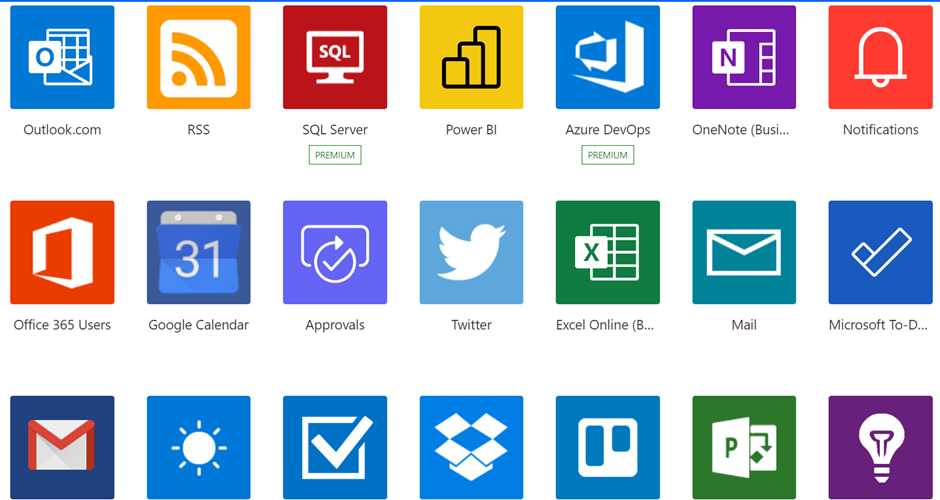
It has hundreds of pre-built connectors and it’s updated very frequently with more and more connectors.
Features of Power Automate
· No Code or low code automation tool
· Save and secure Cloud-based tool
· Pre-built connectors
· Readily use Template flows
· Peek Code feature
· Dynamic content expression
· RPA (UI Flows)
· AI Builder
Now it’s time to see some action points. Let’s hit the example to export the BI reports to various users through email
How to Export Power BI Dashboards using Power Automate
Step 1: Create your report on the Power BI desktop and import Power Automate visual onto the page
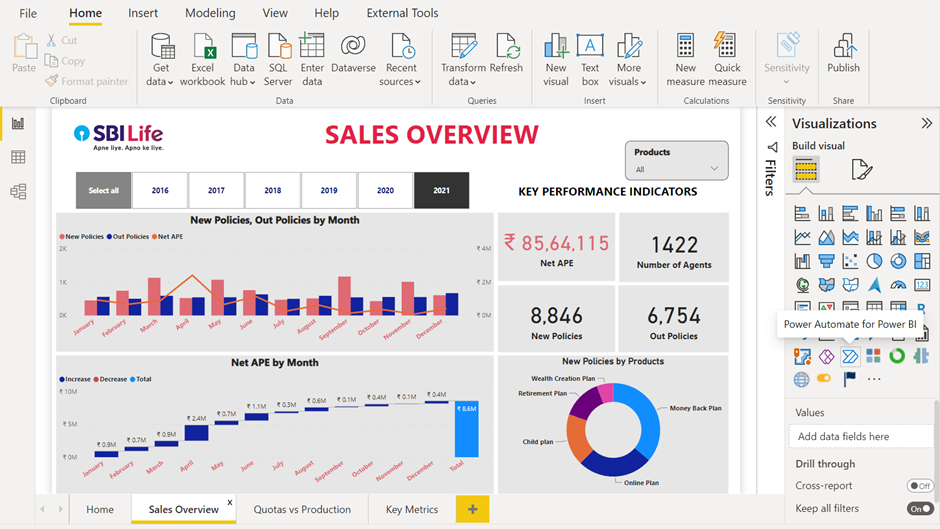
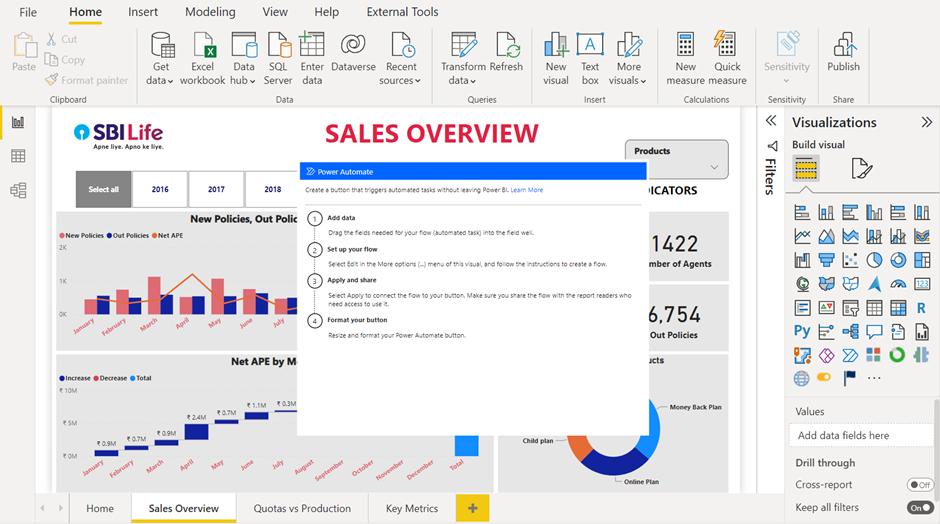
Step 2: Click on the Power Automate visual ellipses to edit the visual
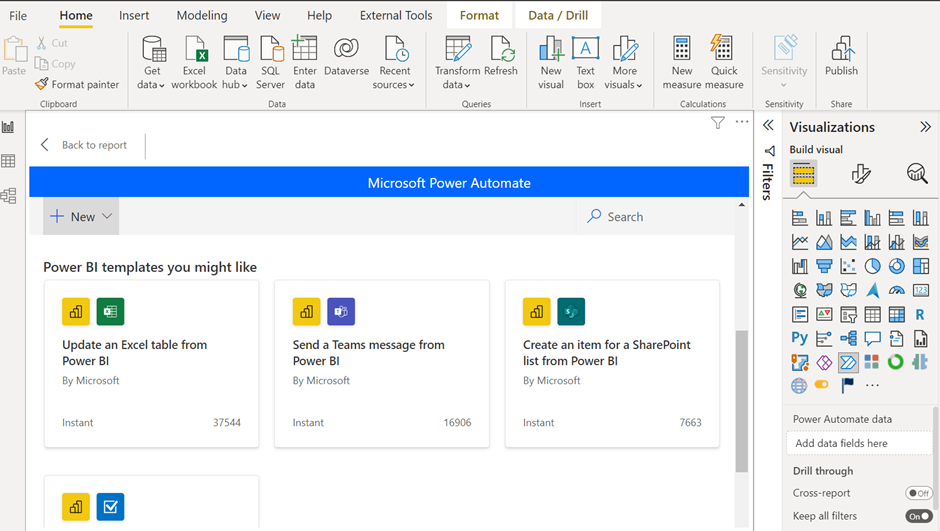
Step 3: Click on New (left top corner) to create an instant cloud flow
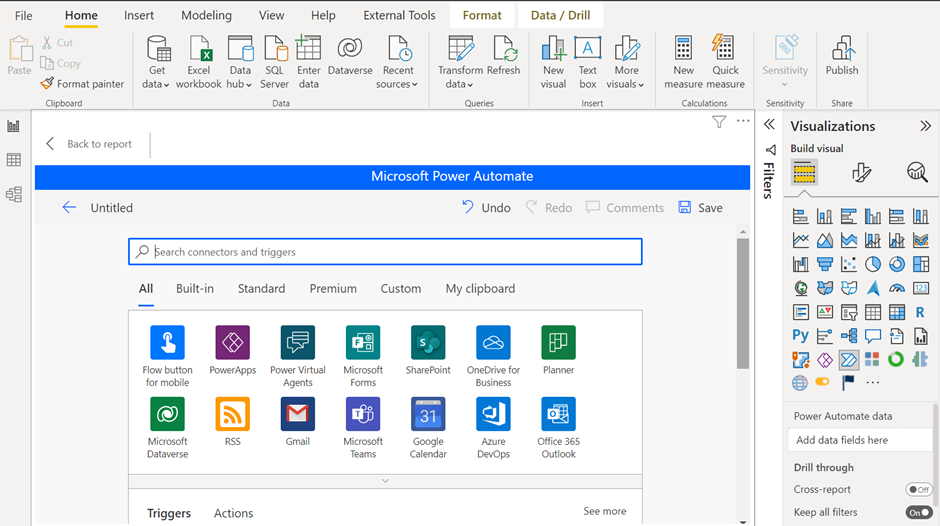
Step 4: Search for Power BI connector and then choose trigger as Power BI button clicked
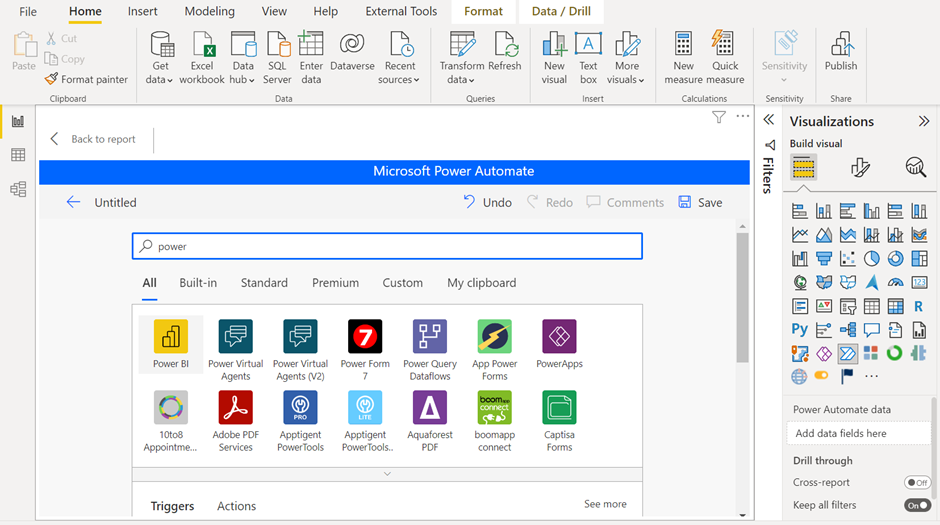
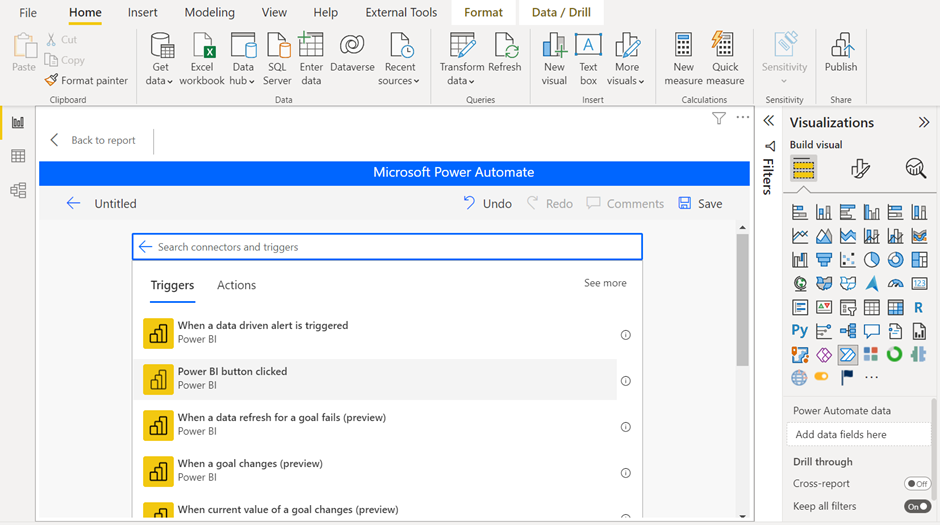
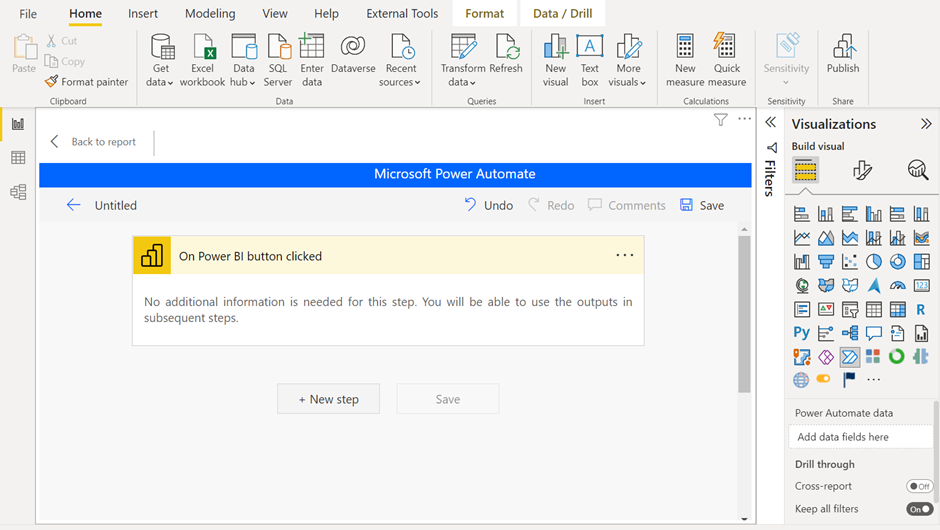
Step 5: Click on New Step and search for Power BI as a connector and Export to file for Power BI reports as an action
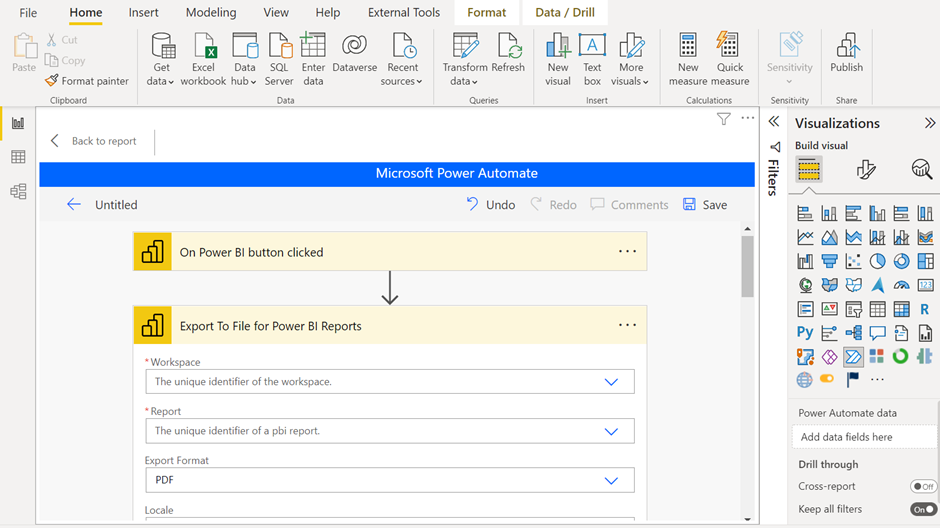
Step 6: Fill in the details in the actions
Workspace – where the report will be hosted in service
Report – Report Name
Export Format – PDF
Step 7: Create a new step and search for Gmail or Outlook and select Send email as an action
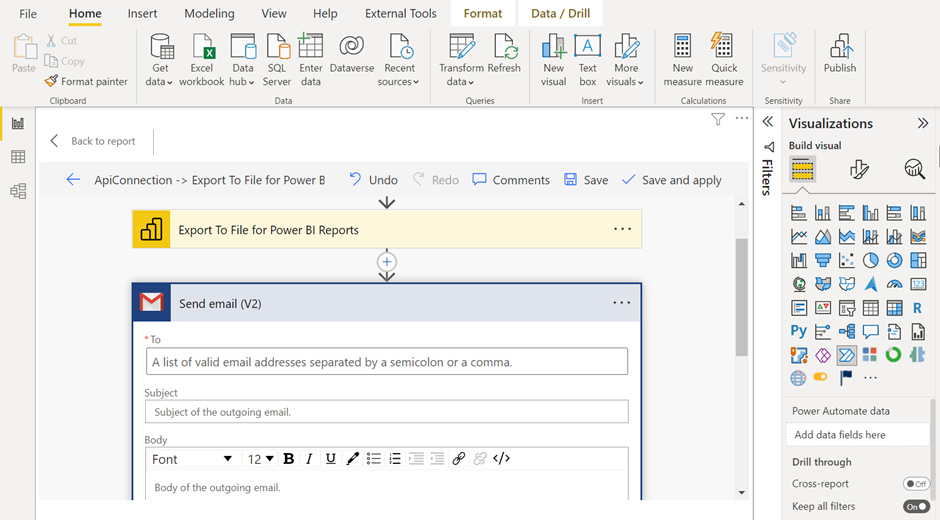
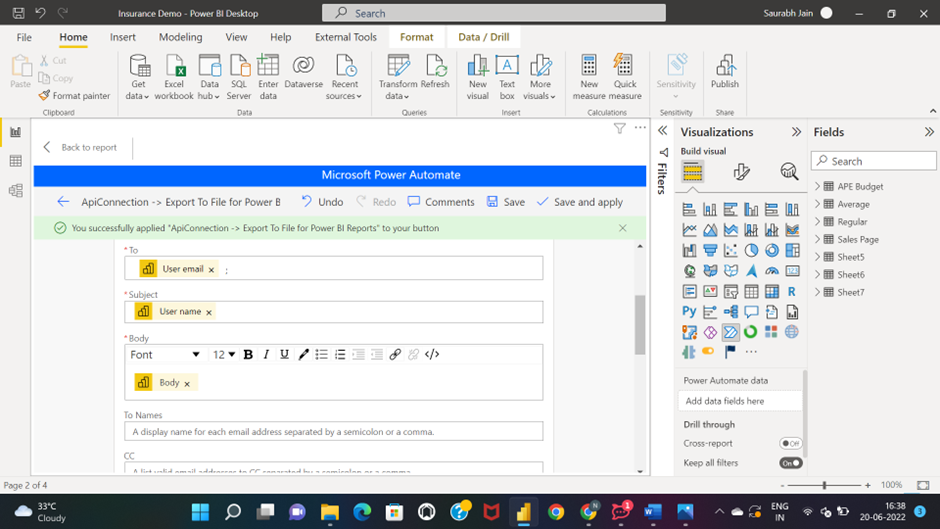
Fill
TO
Subject
Body
Click on Advanced options and fill the attachments using dynamic content
Save the flow and Test it.
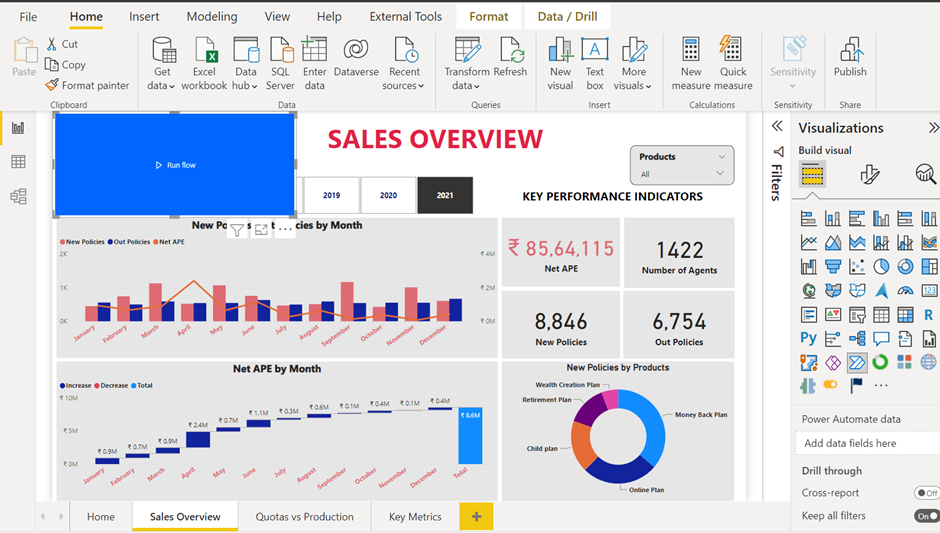
Place the visual according to your choice and run the flow to trigger the action and send a mail to defined users.
Licenses required
This will work on Power BI PPU
Conclusion
We have demonstrated how to export and share Power BI reports with internal and external users (which does not require Active Directory accounts) using Power Automate inside Power BI using a button to trigger the flow, the same can be automated using Power Automate by scheduling the flow. By adding more steps you can create a better creative flow to meet your business needs as we discussed formerly in the article.